
In this form you can create/edit schdules for production targets. Theese production targets will have different types like day/shift/week. However, the schedule the production targets are based on have to be of the type time. To create/edit this type of schedule, go to "Client" -> "Administration" -> "System settings" -> "Internal activities" -> "Schedule". Here there is more information on how this works.
This form also support the Balthzar grid system. To activate this, right-click on the header of the form, and in the new menu choose "Column chooser": Once that is done a new menu will appear called "Customization". Here you can add/remove columns to this form.
Schedule
In this drop-down menu it is possible
to choose a schedule which the production targets will be based
on.
Time
start
Here you select what time the production target should start.
In the format of HH:MM:SS, (hours/minutes/seconds).
Minutes
forward
Here you can select the number of miniutes forward that
should apply to the production target. For example, if the start time
is 10:00:00, and minutes forward is set to 120. Then the target will
be valid until 12:00:00.
Time
type
Here there are three different options to choose from,
Shift/Daily/Week, and the choice made here will affect the targets in both
the web application BZX21, and in this form in admin. Contact the support for
more information/help about BZX21.
Target
type
Here there are three different options to choose from. Planned
orders/Planned time without setup time/Fixed value. The choice made here will
affect how the target is calculated by the system.
If Planned orders is selected then the system will check every order to make sure its start/end time is within the the production targets scheduled time. If it is, the order will be included, if it is not, then the order will not be included. The exception from this rule is if the order is partially included. For example, an order is started within the production targets schedule, but it ends outside the production targets schedule. Then the order will be included.
If the target group is machine, then the system will calculate each order on that specific machine. However, if the target group is Department/Category/Zone, then the system will calculate each machines orders in turn order that they are listed in that target group.
For example: The time type for this production target is set to shift from 06:00:00 to 14:00:00. Four orders are scheduled to run:
Planned order 1: 500 units,
start time: 06:00:00 - end time: 10:00:00.
Planned order 2: 300
units, start time: 10:30:00 - end time: 11:00:00.
Planned order 3: 2000
units, start time: 11:00:00 - end time: 15:00:00.
Planned order 4: 500 units,
start time: 15:30:00 - end time: 16:30:00.
The system will go trough each order, and see if they are within the prodution targets schedule.
The first production order is
within the schedule, and will be added for 4 hours, and 500 units.
The second
production order is also within the schedule, and will be added for 0,5 hours,
and 300 units, now the total is 4,5 hours, and 800 units.
This means that the third production order will only be partially within the production targets schedule. The system will calculate the part of the production order, in %, that is within the production targets schedule. The production orders total time is four hours, 11:00:00 - 15:00:00. Of theese four hours, three will be outside the production targets schedule.
The system will now calculate that 3/4 = 75% of the production order is outside the production targets schedule. Then the system will calculate the % * time * quantity = 0,75%*4 = 3, and 2000*0,75 = 1500.
Total time for the shift for this production target will be 7,5 hours, and 2300 units.
The fourth planned order is outside the scheduled time for the production target. Because of that the system will not include that order. To include that order, increase the scheduled time for the production target.
If planned time without setup time is selected the system will first check how much time that is calendar time. When that is done, the system will check each planned order on the selected machine in turn order. If the target group is instead Department/Category/Zone, then the system will check each planned order on each machine listed in that specific target group in turn order.
Now the system will check each work order to see how much setup time each work order has. The setup time will be excluded from the calendar time. Please note that this is only for planned order. If an order is already started the system will not exclude the setup time for that order.
Next step is that the system will check the remaining time on each work order. This is done by muliply ((setup time *remaining quantity) /3600 / cavities).
As standard the unit time is fetched from the work order, but it is possible to manually change this via "Client" -> "Administration" -> "System settings" -> "Basic data" -> "Machines " -> "Machine parameters 4" -> "Cycle time machines, seconds". Here there is more information on how that form works.
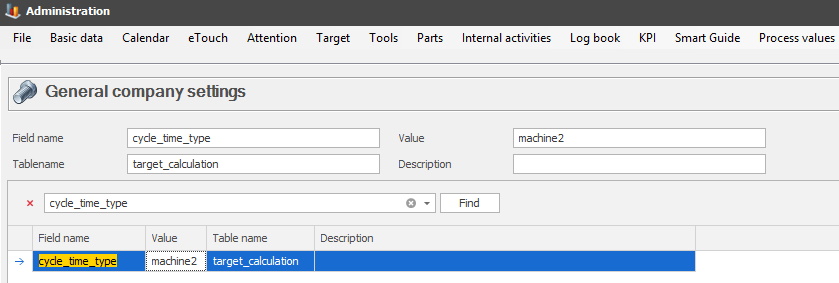
To calculate the planned unit time a fixed multi table value is used. This is done via "Client" -> "Administration" -> "System settings" -> "Basic data" -> "General company settings". Here there is more information on how that form is used.
The number 3600 is the number of seconds in one hour, because the production is set up to find out how much it can produce in one hour.
This will be multiplied with the value of OEE Green/Yellow limit. This value is entered via "Client" -> "Administration" -> "System settings" -> "Basic data"-> "Machines" -> "Machine parameters 4". Here there is more information on how that form works.
The system will check if the work order will surpass the amount of time planned for the production targets schedule. If it does not, then data will be saved for run time/quantity on the specific machine, and then move on to the next planned work order.
Once the system reach the same time of set up time as run time = to the machines calendar time, or run out of planned work orders, we are done.
For example: One production order is already running, and four others are planned during the production targets scheduled time for 06:00:00 - 14:00:00. The OEE green limit is 75%.
Running work order 200 units remaining, planned unit time 5 sec, planned set up time, 120 sec.
Planned
work order 1: 400 units,
planned unit time 10 sec, planned set up time, 1200 sec.
Planned work
order 2: 400 units, planned unit time 20 sec, planned set up time, 1800 sec.
Planned work order 3: 400 units, planned unit time 30 sec, planned set up time,
2000 sec.
Planned work order 4: 400 units, planned unit time 40 sec, planned set
up time, 500 sec.
The scheduled calendar time for this machine is 8 hours = 28 800 sec. The system will now check the running order first, then the planned orders to see if any/all orders are within the scheduled calendar time.
Since the first order is already running, the system will ignore the planned setup time. This means the system will calculate quantity * unit time = 200*5 = 1000 sec for the running order. It will now multiplie this with the OEE green limit with 100/75 = (100/75) = 1333 sec. This time will not exceed the planned calendar time of 28800 sec, so now the system will move on to check the planned work orders.
Planned work order 1 has 1200 sek planned setup time, plus 10 sek unit time, plus 400 planned units. 400 *10 * (100/75) = 5333 + 1200 = 6533 sec + the running work order (1333 sek) = 7865 sec. This does not exceed the planned time for the planned calendar time, so the production is now up to 400 units + previous planned work order = 800 units.
Planned work order 2 has 1800 sec planned setup time, 20 sec unit time, 400 units. 400 * 20 * (100/75) = 10 667 + 1800 = 12 467 sec, plus the time for previous work orders = 12 467 + 7866 = 20 333 sec. This work order is also within the time limit for the scheduled calendar time. The amout of produced untis is now up to 400 + previous work orders= 1200 units.
Planned work order 3 has 2000 sec planned setup time, 400 units, 30 sec unit time. 400 * 30 * (100/75) = 16 000 + 2000 = 18000 sec. Plus the time for previous work orders = 18 000 + 20 333 = 38 333 sec. This work order will exceed the planned time for the scheduled calendar time. The system will now remove the difference between the time for this planned work order, and the total time for the planned scheduled calendar time= 38 333 sec - 28 800 sec= 10 333 sec.
To find out the amount units being produced the system will take the run time left on the work order = 10 333 sec - the set up time on the work order = 8333 sec. To find out the percentage of this of the work order remaining time / full run time = 8333 / 16 000 * units (400) = 208 units. This plus the units from previous work orders is equal to 208 + 1200 = 1408 units.
To include the entire planned work order 3, the planned scheduled calendar time has to be increased with 10 333 sec.
If Fixed value is selected, then the menu for Target quantity will be available. Once a value is entered there, a Target data type must be selected. This will then control the production.
Target quantity
If the target type Fixed value is selected, then this
menu will be available. When a numeric value is entered here, that will be the target
of the fixed
value.
Target data type
Here it
is possible to choose between quantity/time. The selection here will determine
what data type the value in the Target quantity menu will be. For example, if 12
is entered in the Target quantity menu, and time is selected. Then
the production will last for 12 hours. However, if quantity is selected, then 12 pieces
will be produced.
Target group
In this drop-down menu it is possible to choose
between machine/department/category/zone. The choice made here will then affect which of the drop-down menus for the corresponding target group
that will be
available.
Note that if machine is selected as a target group, it will only include the selected machine. To have a production target schedule for more machiens select a department/category/zone.
Machine/Department/Category/Zone
In
this menu the corresponding target group from the previous menu will be made
available. If you wish to create a production target schedule for a specifi
machine pick machine. For more then one machine pick
deparmtent/category/zone. Here
there is more information on how to
create/edit the target
groups.